
How to do Mfundo courses
How to pay (if payment is required)
After selecting your course, click Buy Now.
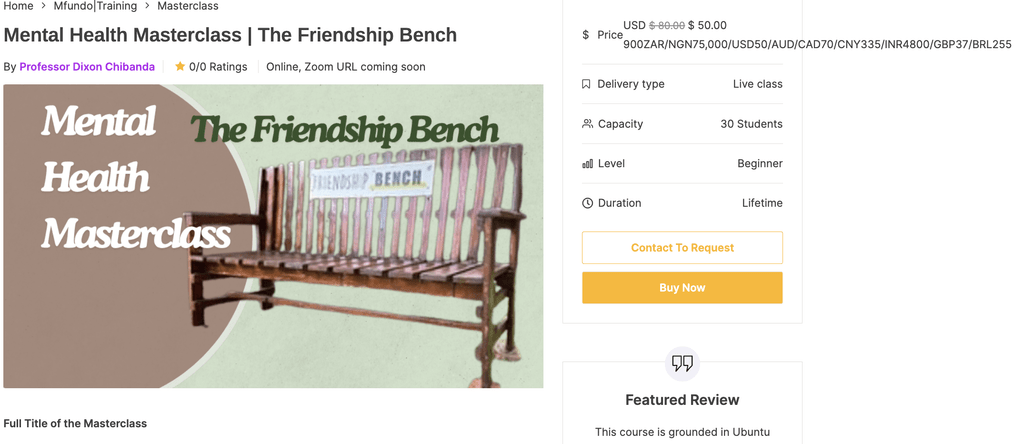
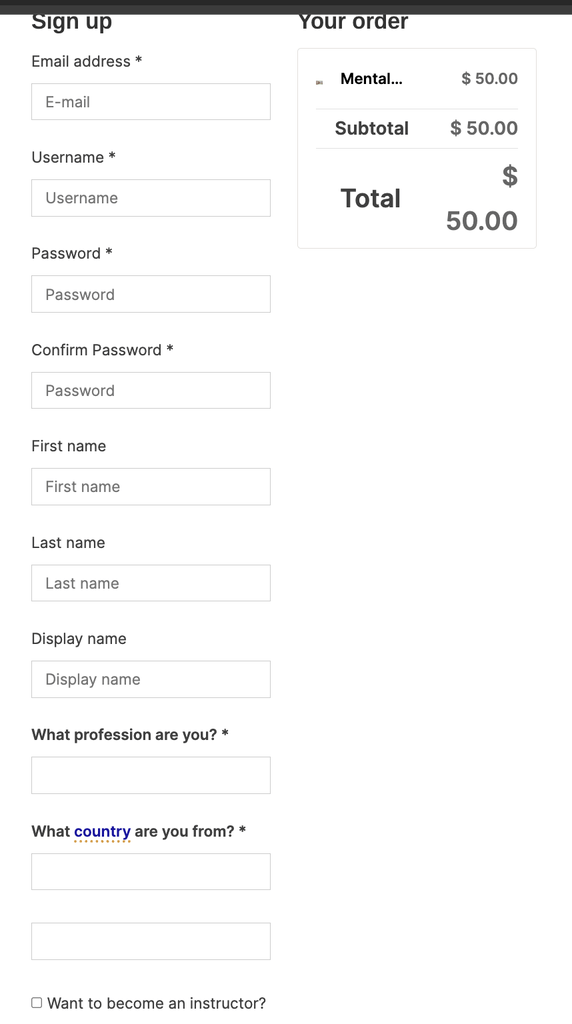
After clicking Buy Now, you can pay as a guest or user. As a guest, put your email and proceed. As a user, use your Mtandao log in and password, or register if you do not have one.
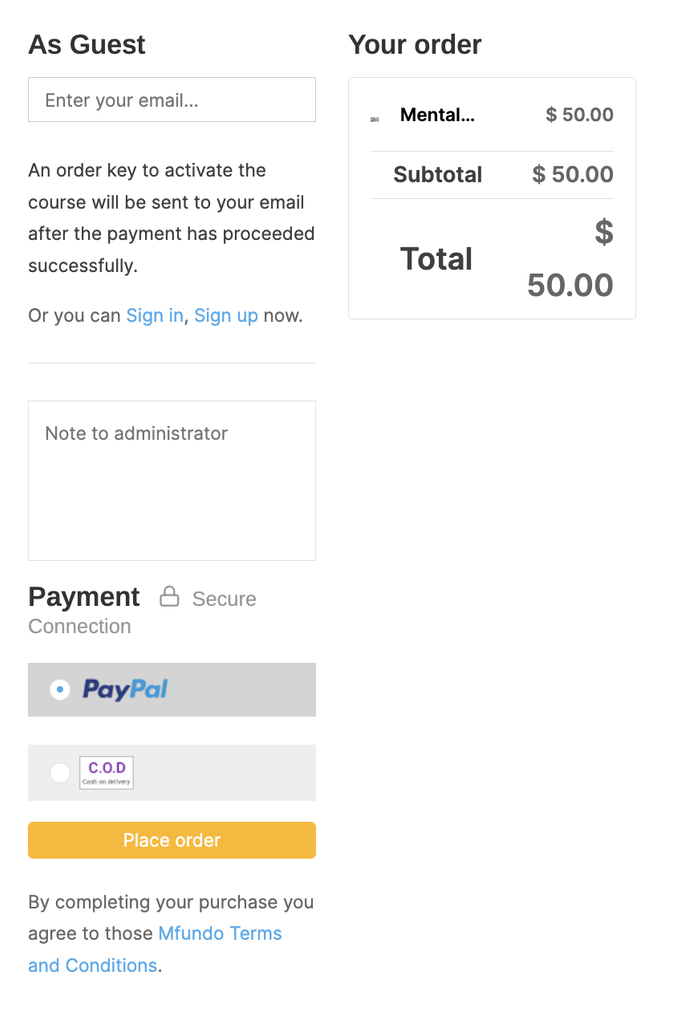
Below is an example of a guest page. At the bottom, you choose to pay by PayPal or bank. If paying by bank, you will receive bank details from us via email. If paying via PayPal you will be taken to PayPal website, and asked to sign in to your account to process payment.
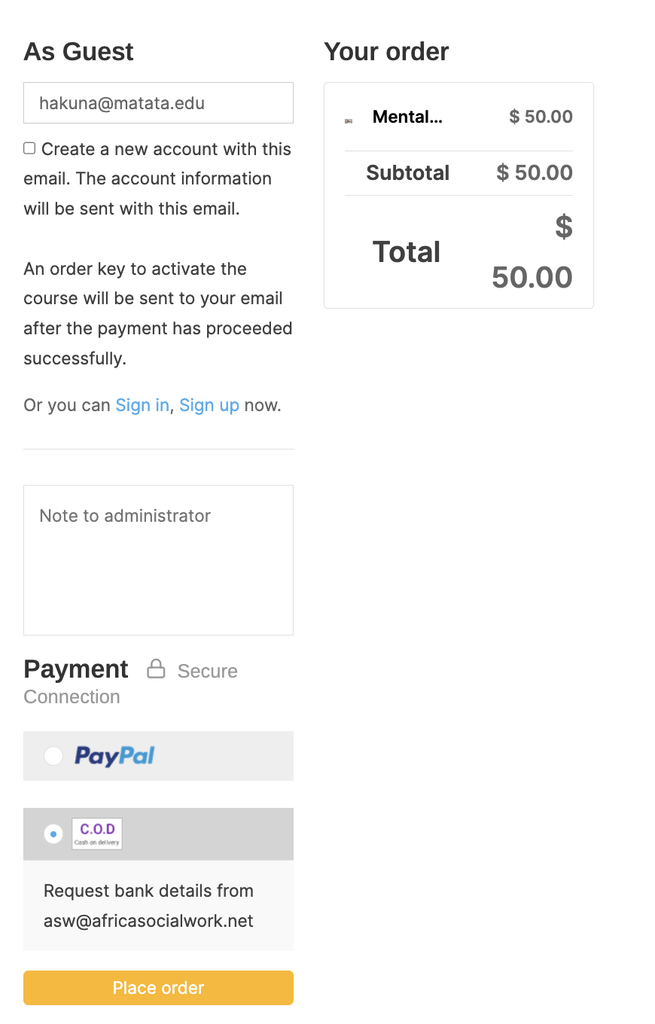
Below is an example of a sign in page.
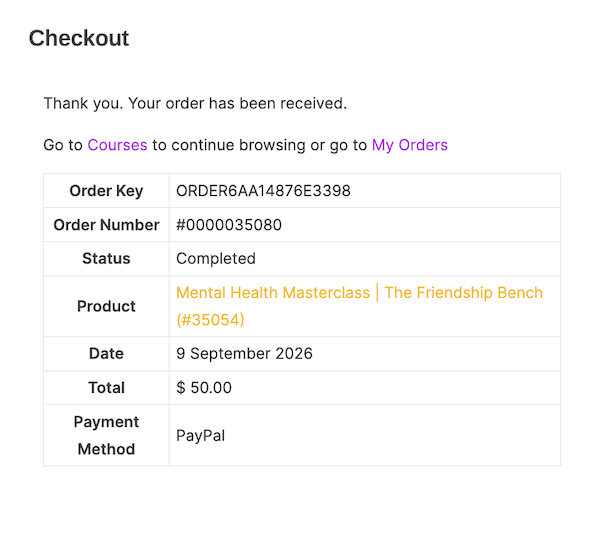
After completing payment you will receive on the screen and via email confirmation.
Live Online CPD
If you are registering for a live course or event, you will receive meeting details vial email. If training on the website, read the information below.
How to start online courses (with pictures)
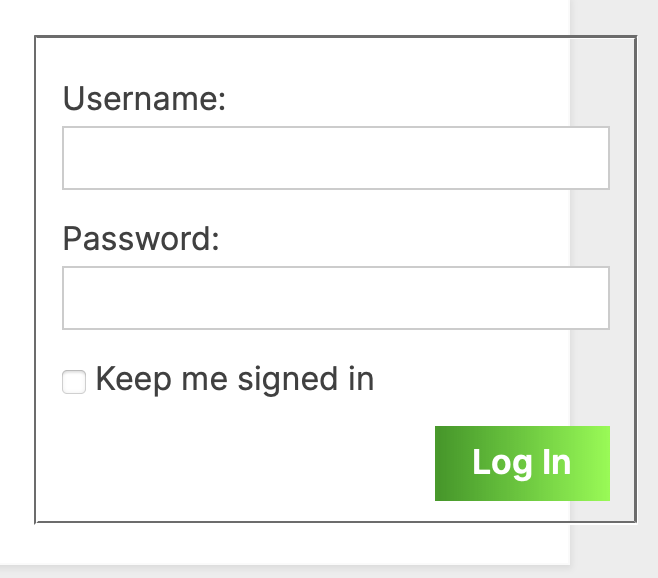
You can view the course without signing in, but to start the lessons you need to sign in. To register, email us – asw@africasocialwork.net You will receive log in details via email. The login page may be different but usually looks like the one below.
When you sign in go to to Mfundo, then select the correct course.
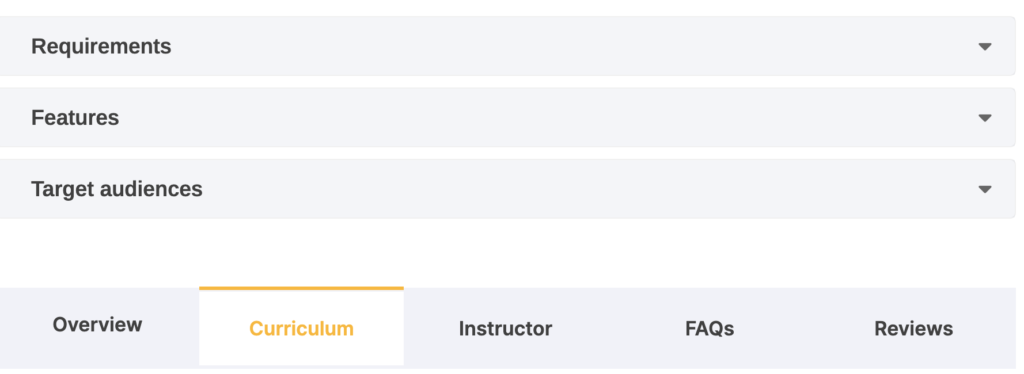
In the course, go to Curriculum, then you will see the lessons for you to do.
Click the Start Now button.

How to do the lessons (with pictures)
The course has 3 lessons. You need to do all lessons to finish. Quiz or Questions may not be activated for this course.
Click each lesson and do the reading or activity. Use the <Prev or Next> buttons to move lessons.

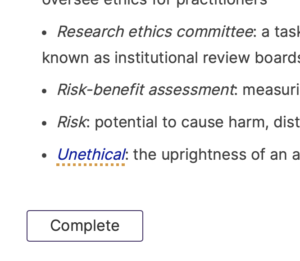
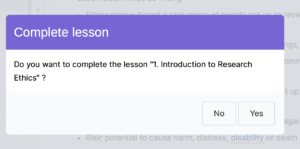
When a lesson is complete, click Complete
In the index you can search lessons.
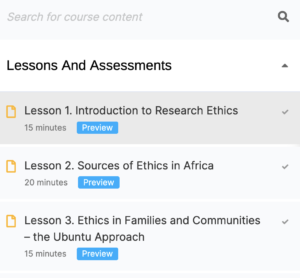
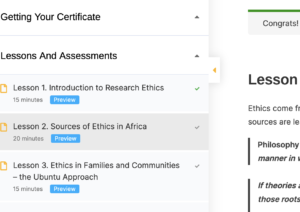
You open and close the index using the orange button/arrow head.
You will be asked to confirm
When a lesson is finished, you will see the Congratulations message and the lesson tick turns green in the index.

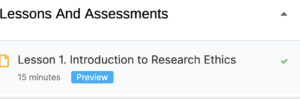
You can see how many lessons have been completed.

When all you have completed all lessons you can Finish the Course the course.
Completing the course and completion email
Click the Complete button, then any of the Finish buttons

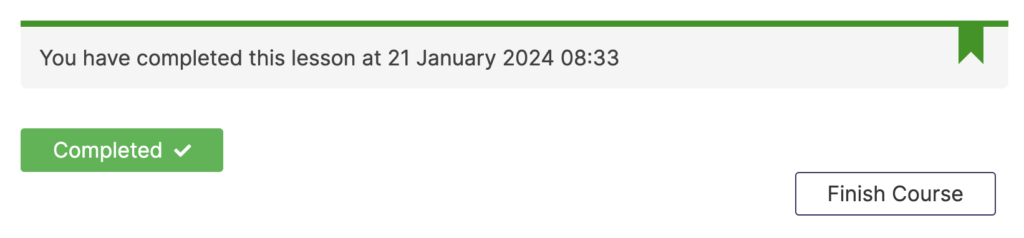
You will receive an email with the subject [Africa Social Work and Development Network (ASWDNet)] You have finished the course. The email does not come with your certificate, you need to download it from the Mfundo training portal. In most cases the certificate appears on your screen soon after completion, if not, please refresh your browser and go to the course page, the certificate should be there. If not, try to clear your browser cache.
Assessment
Assessment may include quizzes after each lesson, at the end of all lessons or a statement of learning at the end of the course. The statement of learning will be between 200 and 500 words covering 1. What you learned [content]. 2. Skills gained 3. Deep thinking about one selected aspect of the training. 4. How the learning will improve your practices.
Getting your certificate
A certificate is offered if the course is successfully completed.
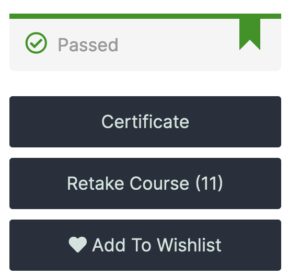
Click the Complete button, then Finish and then Continue to get the Certificate button.
Click Certificate or Retake Course, if you want to.
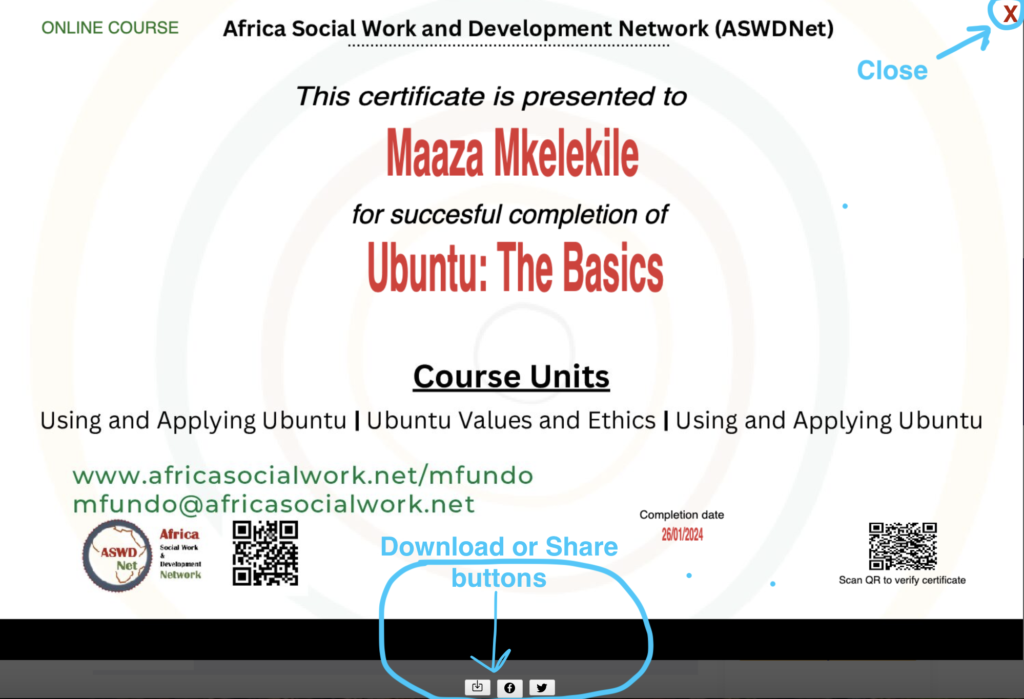
You can download a PDF, look for a download button at the bottom of the certificate. You can also share on social media. If you want to get an image or photo (JPEG), right click the certificate and select your option. In the far right top corner of the computer screen, you can close the certificate using the X. You can come back anytime to download your certificate. Each certificate will have a unique QR which will verify the certificate. When scanned, the QR code opens the certificate.
If you face challenges, use this link to request your certificate. It takes 24 – 72 hours to get your certificate processed and emailed to you.